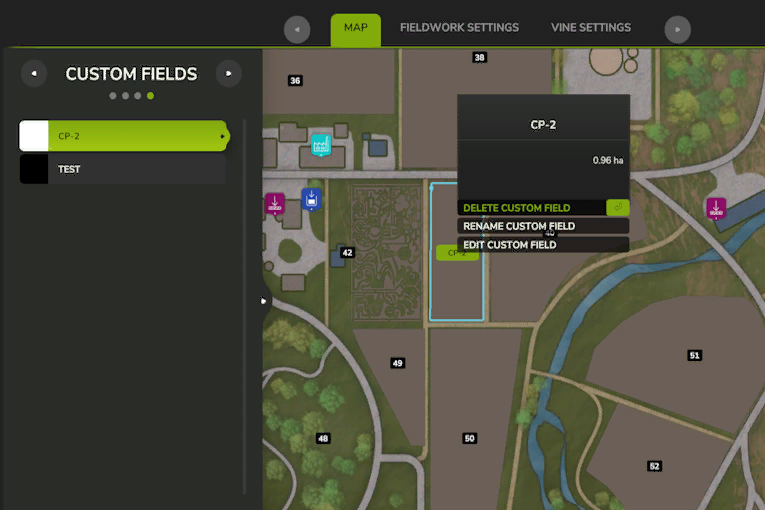
Campos Personalizados
Existen dos maneras de crear un campo personalizado.
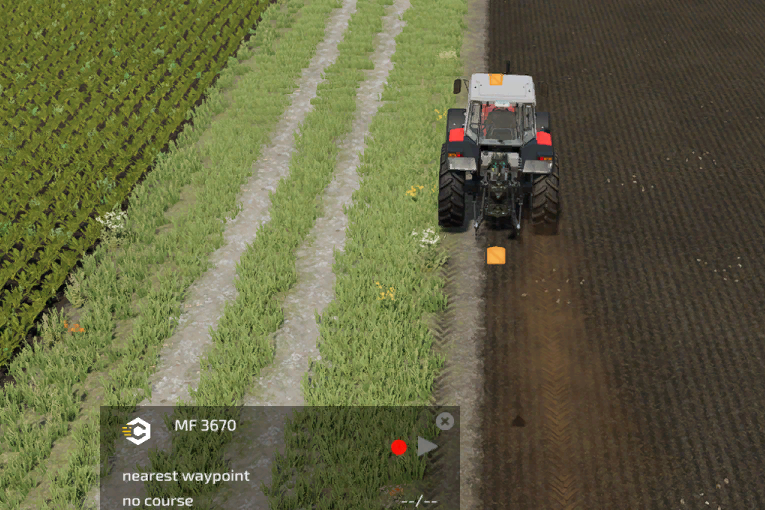
Primera: Usar la función de grabación del HUD.
Inicie la grabación y grabe el borde de su campo.
Una vez hecho esto, presione el botón nuevamente y se le preguntará si desea guardarlo.
¡El inicio y el final no deben superponerse!
Los bordes de los campos personalizados se mostrarán en el menú de IA.
Al hacer clic en el nombre, tendrá la opción de eliminarlo, cambiarle el nombre o editarlo con el editor.
The second option is to draw the custom field on the map of the CP AI menu.
To start the drawing, hit they button on the bottom left corner or hit corresponding key.
After that a text appears on the top of your screen.
Start by clicking the right mouse button for setting the start position.
By holding the shift key, the line will be set straight in 90° angles.
The next clicks will create lines to the previous click.
Once you draw a second line, the course will be automatically closed. You can still draw more lines to define the field even further.
You don't need to draw the last line to the start, as it gets generated automatically straight to the start.